
 Bifrost Docs
Ontology
An ontology defines the label schema for your dataset - how each Bifrost 3D asset is mapped to an annotation class.
What is an Ontology
Each ontology provides:
A mapping from each Bifrost 3D asset to exactly one class
A class name and class ID for that mapping
Core Rules
Strict many-to-one mapping
Each Bifrost 3D asset maps to exactly one class within an ontology.
Applied at download time
Ontologies are not tied to dataset generation. The same dataset can be downloaded with different ontologies.
Selected ontology determines annotations
The COCO annotation file is generated based on the ontology selected during download.
Unmapped assets are unlabelled
If an asset has no mapping in the selected ontology, it will not be included in the annotations.
Ownership and Sharing
Users can create multiple ontologies. Each ontology is owned by the user who created it.
All ontologies are visible across the organization by default, allowing others to view, edit, and use them. However, only the owner can delete an ontology.
Annotation Impact
The same dataset can be downloaded with different ontologies, producing different annotations without regenerating data. This allows labeling strategies to change without requiring new dataset generation.
Ontologies can be edited at any time, allowing class definitions to evolve as requirements change.
Usage
Basic Workflow
Once rendering is complete, click the Gallery button at the top to view the dataset. Select the collections you want to download. The download confirmation panel will open.
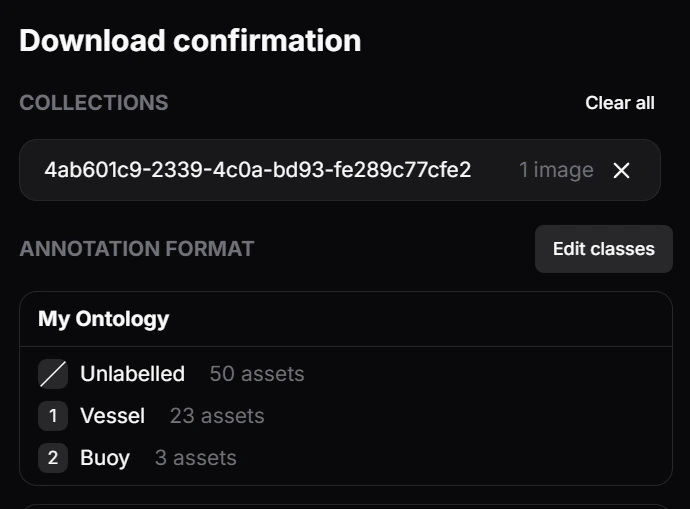
Under ANNOTATION FORMAT, you can see:
The selected ontology
Any unmapped assets, labeled as
UnlabelledThe class names in the ontology
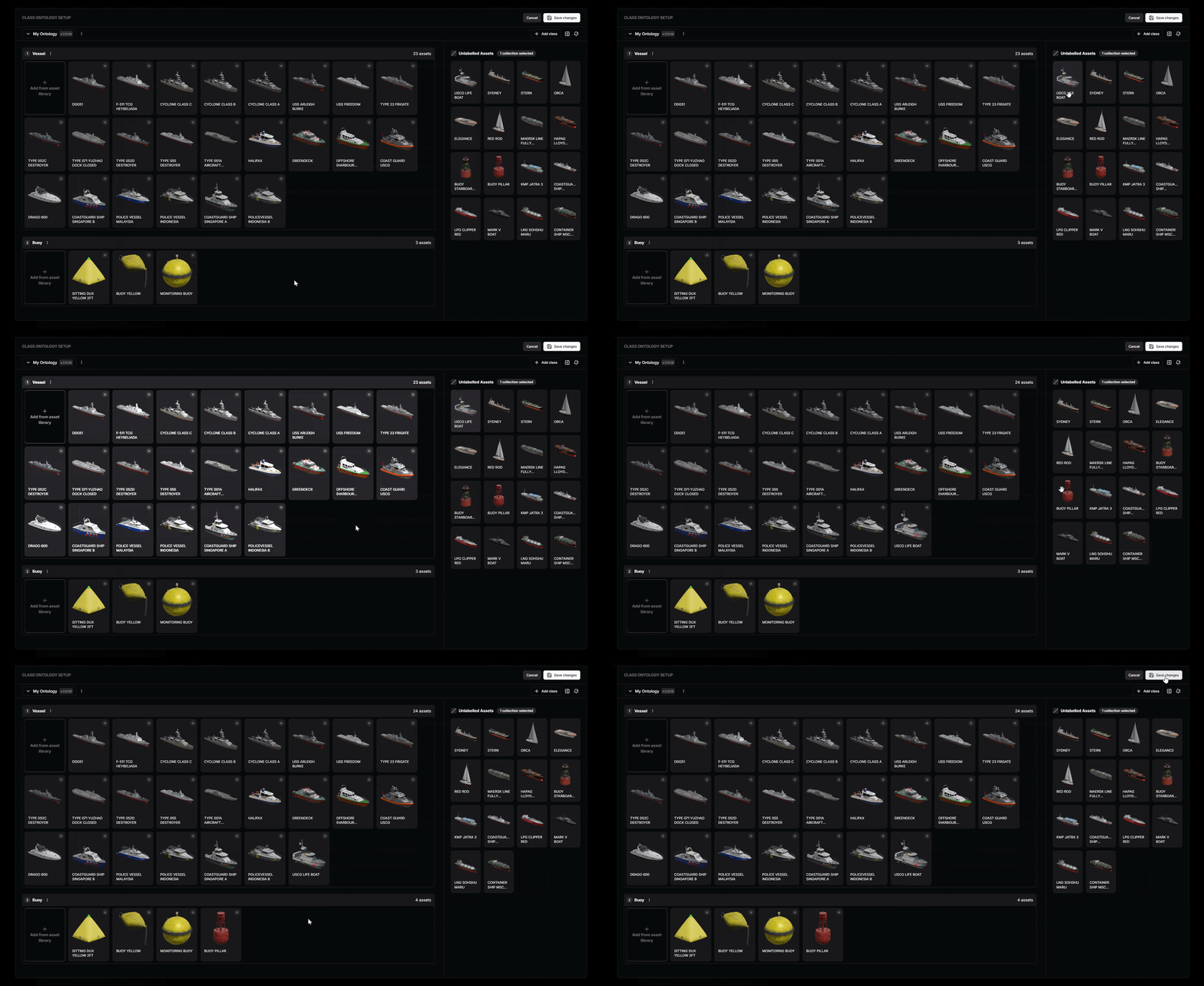
If the selected ontology is not correct, click Edit classes to open the ontology setup page. Use the dropdown at the top left to select a different ontology.
To modify asset-to-class mappings, use the same page. Drag assets from the right panel (unlabelled assets) to the left panel (labelled classes), or move assets between classes to change their assignment.
Once you are satisfied, click Save Changes to apply the updates and return to the gallery. You can then proceed to download the dataset.
Advanced Usage
Import and export ontologies
Ontologies can be saved as JSON files for version control, sharing with teammates, or reusing schemas across projects.
Use Ontology.export_json in your notebook code to export an ontology as a JSON file.
1ontology_classes = {
2    1: {
3        "name": "category_1",
4        "asset_names": ["asset_a", "asset_b"]
5    },
6}
7Ontology.export_json(ontology_classes=ontology_classes)
Download the file, then open the Class Ontology page from the top navigation bar.
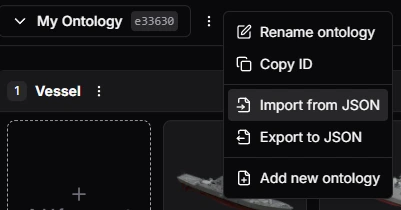
From the options menu (three-dot icon), select Import from JSON to load it.
Note
You can also export an existing ontology to JSON from the Class Ontology page using the same options menu.
Retrieve asset names from an ontology
Use Ontology.get_ontology_by_id to load an ontology by ID.
This returns the ontology classes and the assets mapped to each class.
You can use this output to retrieve asset names for a specific class and load those assets into the notebook.
Tip
You can get the ontology ID by opening the ontology page, clicking the options menu (three-dot icon),
selecting the desired ontology, and clicking Copy ID.
If you do not see the ontology in the dropdown, select View All to see all available ontologies.
1ontology = Ontology.get_ontology_by_id(ontology_id="<ontology_id>")
2
3# get the assets name for class "Vessel"
4for class_id, class_data in ontology.items():
5    if class_data["name"] == "Vessel":
6        print(class_data["asset_names"])