
 Bifrost Docs
Upload assets
Add your own 3D models to your asset library, then place them in scenes alongside the assets Bifrost provides. Uploaded assets are visible only to your own organization.
How to Upload
Share the asset file and the name you want the asset to have with your agent:
Upload this asset file and name it Mallard
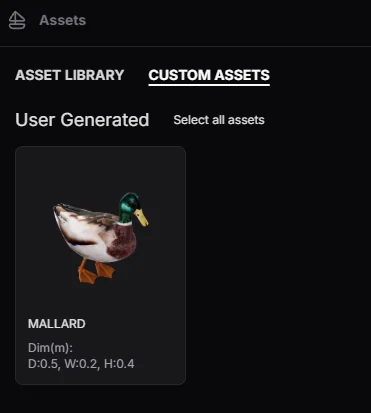
Assets appear under Custom Assets once the upload completes, tagged User Generated.
Note
Your model must be a GLB file of up to 256 MB. See Troubleshooting for what else can stop an upload, including name clashes.
Thumbnails & Dimensions
Bifrost works both of these out as the asset publishes, independently, so one can succeed while the other does not.
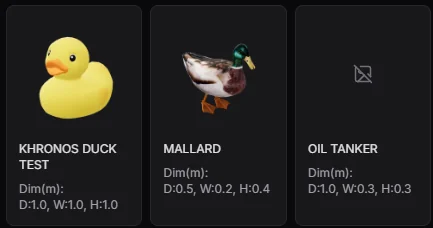
Three models uploaded the same way, with three different outcomes.
Khronos Duck Test: thumbnail but no real dimensions. The 1 x 1 x 1 is the placeholder; the model itself actually measures 1.2 x 1.7 x 1.5 metres.
Mallard: both, measured at 0.5 x 0.2 x 0.4 metres, and the only one of the three facing the same way as Bifrost’s own assets (see Asset Direction).
Oil Tanker: dimensions but no thumbnail. A tanker measuring 1.0 x 0.3 x 0.3 metres was exported at the wrong scale.
Any asset in the library can be spawned regardless of thumbnail or dimensions, so all three can be placed and rendered.
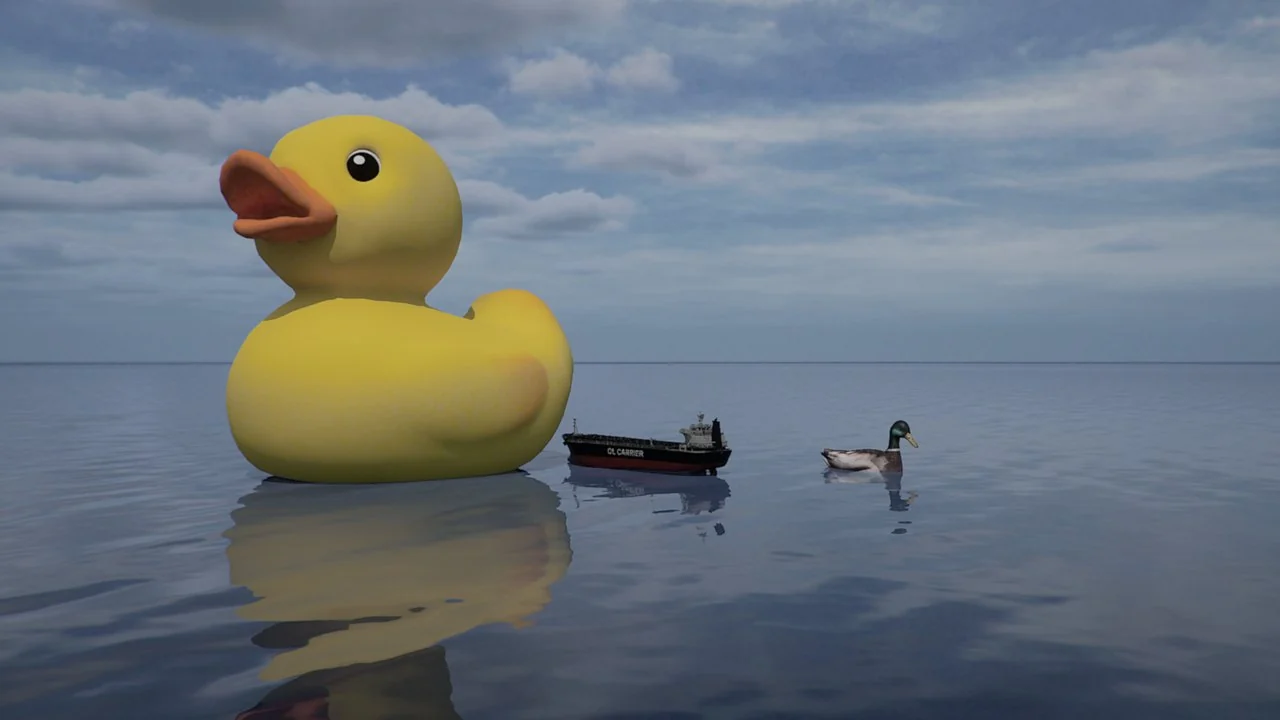
The same three uploads in one scene. Note that the 1.7 m rubber duck dwarfs a 1 m oil tanker, and only the mallard is a realistic size.
Thumbnails. A thumbnail is drawn after publishing so the asset can be recognised in the library. Here are common reasons a thumbnail fails to publish and what to do.
Reason |
What to do |
|---|---|
The uploaded object could not be read back
The renderer did not return a tile
The asset library refused the tile
|
Publish the same file again as a new version. |
The uploaded object is over the render threshold |
The file is above 32 MB. Publish a lighter version. |
The browser drew nothing from the model |
Check the file opens in a GLB viewer, then publish a corrected version. |
Dimensions. Bifrost measures your model by reading its size from the file’s own metadata. That size drives how the asset behaves, from the wake it leaves to how it rides in waves, and it is what you filter on when searching the library.
Bifrost does not make changes to the size. A model exported at the wrong scale gets a size that matches the file rather than the real object. The oil tanker, for example, was exported too small: the dimensions are an accurate reading of the file, and the file itself is wrong. It has to be re-exported at a realistic scale and published again.
Models using quantized positions, GPU instancing or skinning cannot be measured and publish at a placeholder 1 x 1 x 1 metres. They still work, but behave as a one metre object, and the dimensions cannot be corrected afterwards. Re-export without those features and publish again.
Asset Direction
Bifrost’s own assets have a fixed convention for facing. An uploaded asset keeps the orientation it was exported with, so one exported facing another way is placed facing that way.
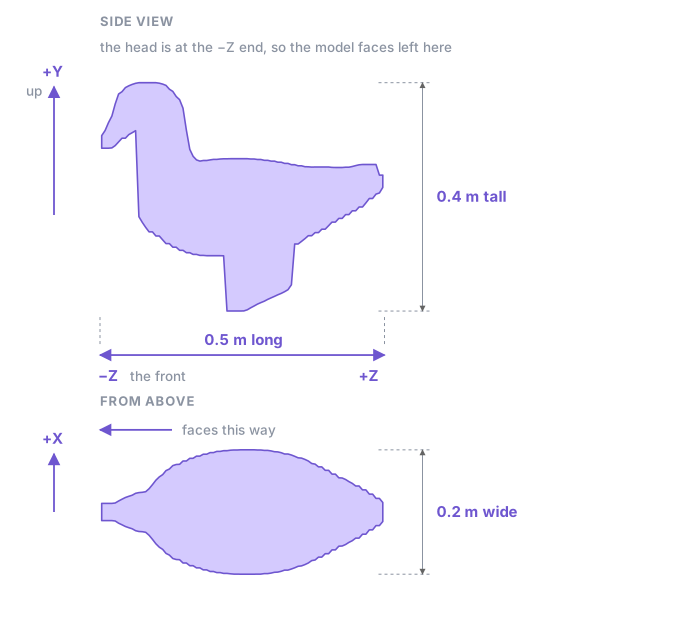
The Mallard, drawn from its own vertex data: head at the \(-Z\) end, height along \(+Y\), width across \(X\).
In the GLB, put the model’s up along +Y and its front along -Z, with width across X.
Attention
Note the sign. The glTF format names +Z as the front of an asset, so an exporter that follows that convention produces a model facing backwards here. Turn it 180 degrees before exporting.
Asset Pivot Point
As covered in Coordinate system, an asset’s position is defined at its pivot point, which may differ from its geometric centroid. Where you put the pivot point decides both where the asset lands and what it swings around when floating.
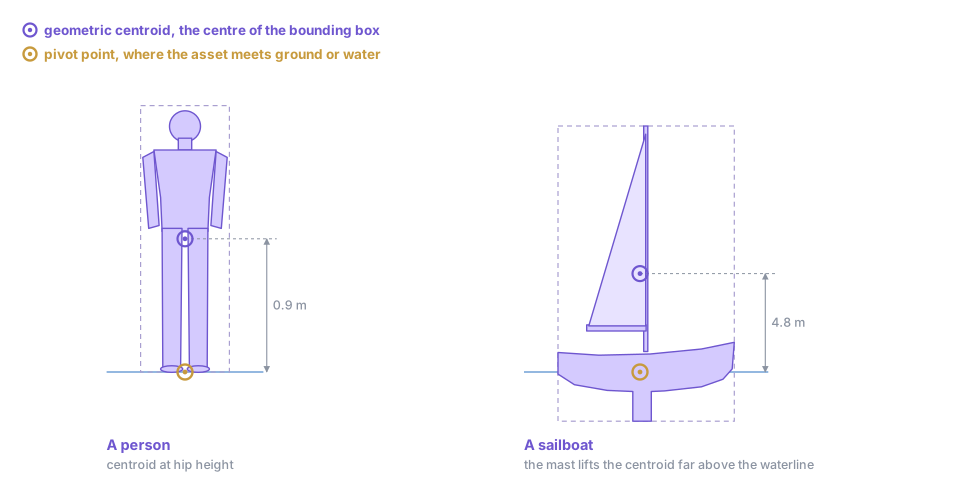
A person’s centroid sits at hip height, a sailboat’s halfway up the mast. Neither is where the asset touches the world.
World Position
Whatever part of the asset sits at the pivot point lands on the position you ask for.
Floating assets. Pivot point height sets the waterline (the height the water reaches). A duck whose pivot point sits at its waterline floats correctly; one whose pivot point sits at its feet stands on the surface instead.
Land assets. Pivot point height sets where the asset meets the ground. A vehicle whose pivot point sits at the bottom of its wheels rests on the ground.
In both figures below, the blue line marks z = 0 in the world: the waterline OR ground.
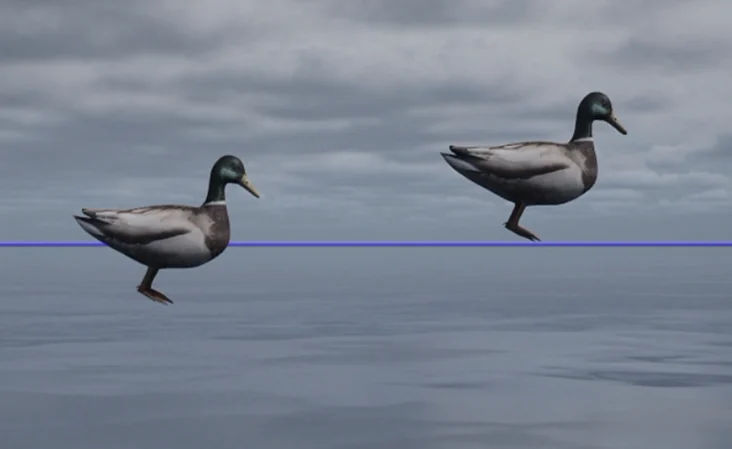
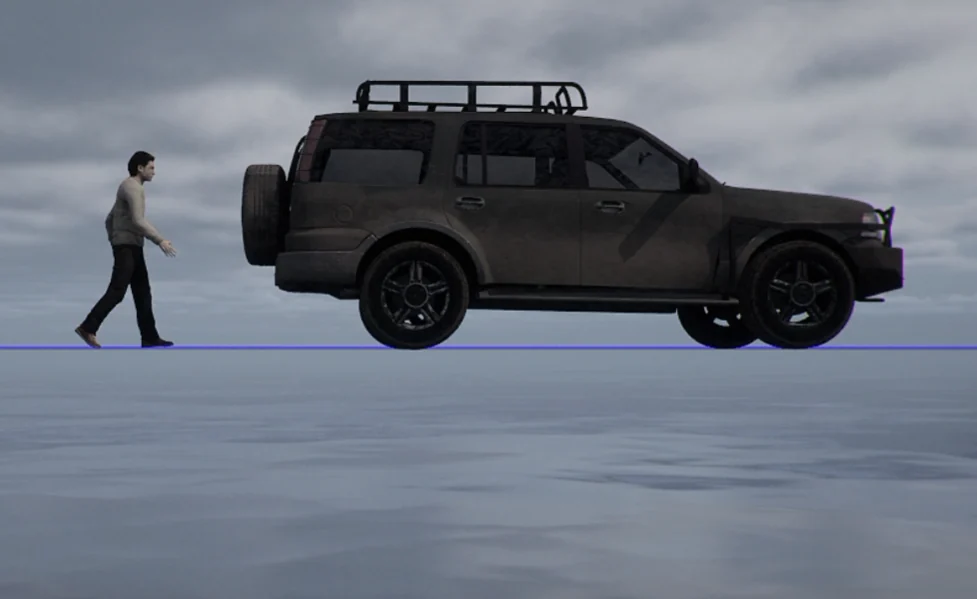
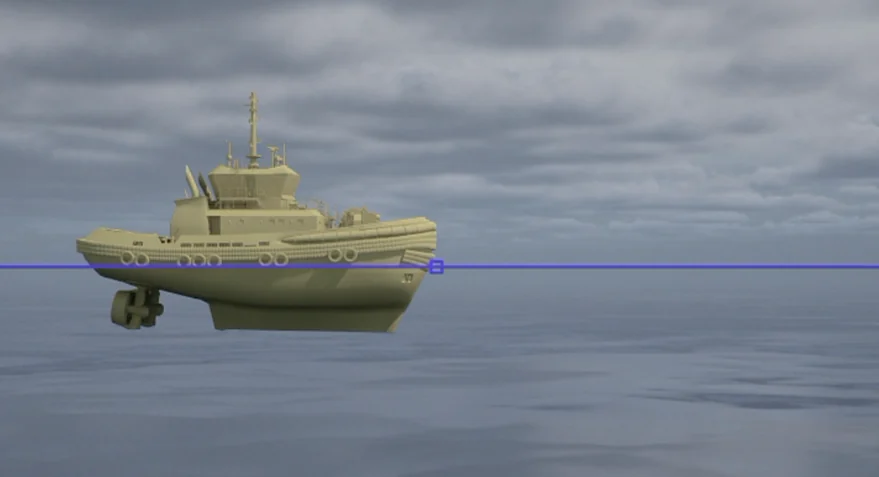
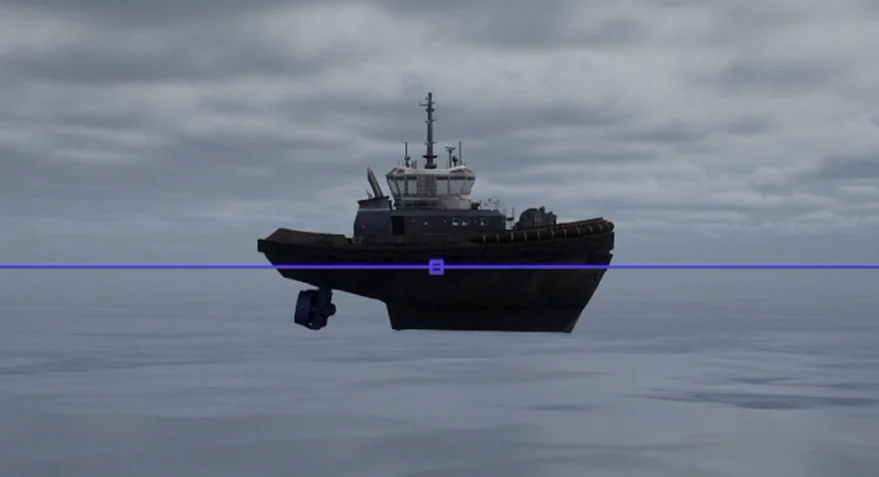
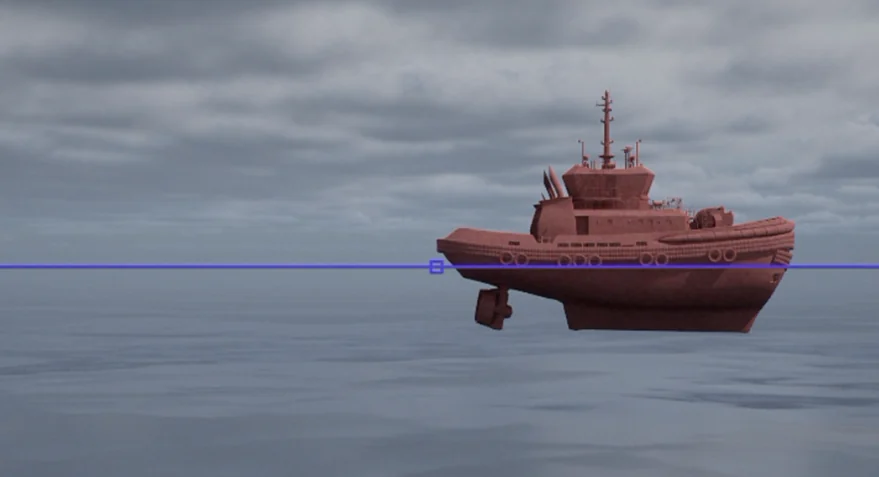
The pivot point’s position along the asset also affects where the asset lands. Below are
three identical tugboats with different pivot points, all placed at Vector3(0, 0, 0),
marked by the small square.
Buoyant Rotation
A floating asset rotates about its pivot point, so the pivot point also decides what it swings around.
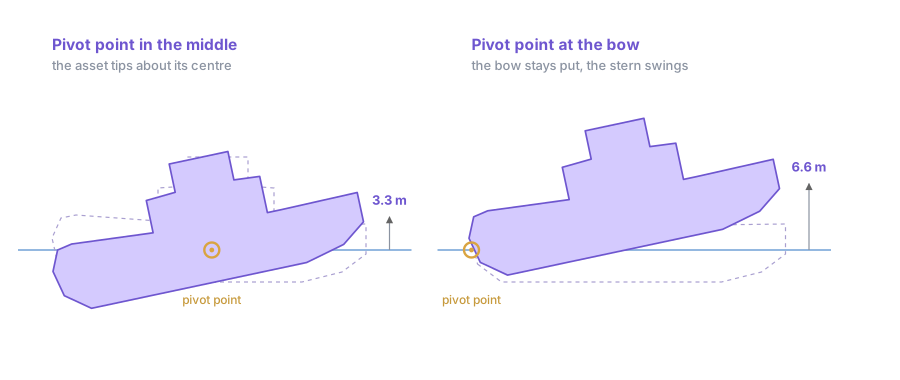
The same hull at the same tilt. About the middle, each end moves 3.3 m. About the bow, the stern swings 6.6 m.
Bifrost also reads the water around the pivot point to work out how the asset floats. With the pivot point in the middle of the hull, that is the water the asset is sitting on. It would be inaccurate to place it at the bow or the stern, resulting in the asset riding high over a trough or digging into a crest.
Tip
Put the pivot point on the centreline, midway along the hull, at the height the water reaches. This is usually not the geometric centroid: on a sailboat the mast pulls the centroid far above the waterline.
Troubleshooting
Every refusal says what happened and what to do, and no upload is left half-published.
What you see |
What it means |
|---|---|
Your organization cannot publish anywhere |
Publishing is not enabled for your organization. Ask Bifrost to enable it. |
That library is not yours |
Use one of the libraries you were offered. |
An asset with that name already exists |
The message lists the matches. Add your file to one as a new version, or rename. |
The request was rejected before anything was created |
A bad name, a file that is not a GLB, or an unknown tag. Nothing needs cleaning up. |
The upload is no longer valid |
More than a day has passed, or it belongs to someone else. Start a new one. |
The file has not arrived yet |
Publishing ran before the file finished sending. Ask the agent to send it again. |
The file was rejected |
Not a usable GLB, truncated, or outside the size limits. Nothing was published. |
Too many uploads |
Your allowance of started uploads is used up. Stop retrying and wait. |
The asset service is unavailable |
A problem on the Bifrost side. Nothing was published. Try again shortly. |
Limits
Limit |
Value |
|---|---|
Accepted format |
GLB only |
Smallest asset |
1 KB |
Largest asset |
256 MB |
Largest asset that gets a thumbnail |
32 MB |
Length of an asset’s name |
200 characters |
Length of the file name |
255 characters |
Tags per upload |
20 |
Versions of any one asset |
9999 |
Uploads started per person |
20 per hour |
Uploads started per organization |
200 per day |